
Why Outlook Rules Stop Working in New Outlook for Windows 11
By Tech Entertainer Team · 2026-08-10
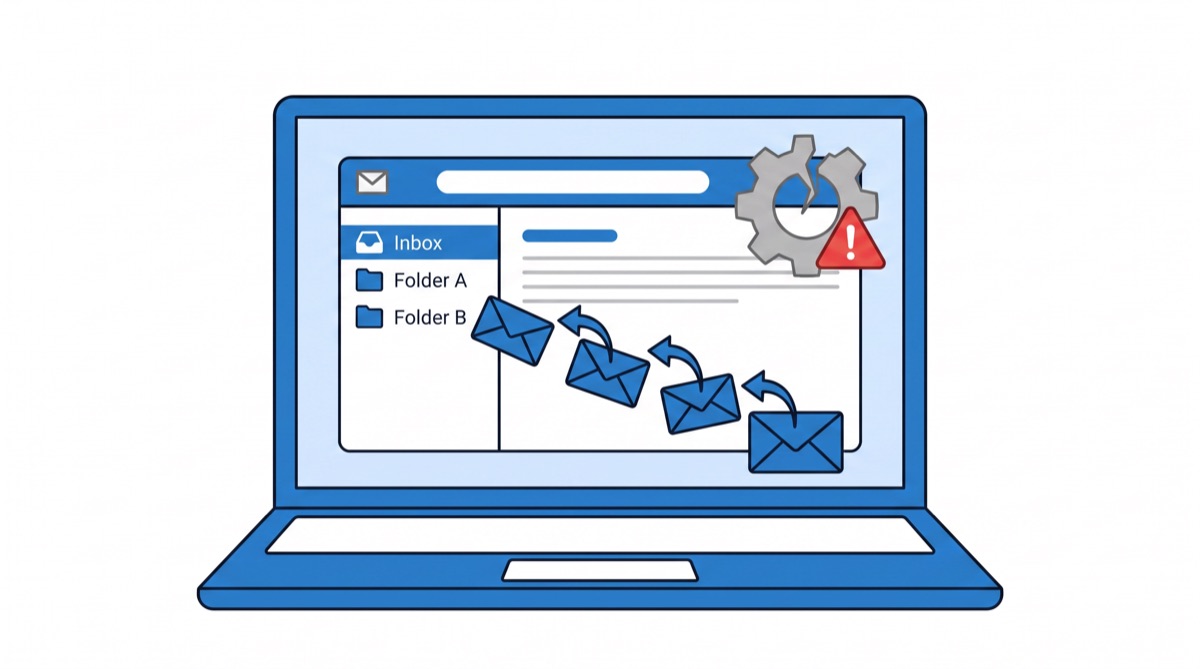
Rules that sorted mail for months suddenly stop, and Outlook gives no explanation. Mail from a client, a newsletter, or a shared mailbox lands in the inbox instead of the folder you built for it. No error. No popup. No red text.
This is one of the most common complaints since Microsoft made new Outlook the default on Windows 11. The cause is almost never a bug. It comes down to a mismatch between how rules used to work and how new Outlook handles them now.
I ran into this after a Windows Update in July. Three rules filing vendor invoices into subfolders went dead without warning. Here is what fixed it, along with the checks worth running before you rebuild anything.
Why did my Outlook rules stop working after a Windows update?
New Outlook does not run the same rule engine as classic Outlook. It does not migrate every rule cleanly.
When Microsoft moves an account to new Outlook, or auto-upgrades it after a Windows Update, it copies server-side rules over. Client-only rules get left behind. If your old rule moved mail into a local PST file, played a sound, or ran a script, none of it survives the switch. New Outlook supports only server-side actions: move to a folder, forward, categorize, delete, and a short list of others defined by Exchange Online.
Check which type your rule used to be:
- Open classic Outlook, if it's still installed.
- Go to File, then Manage Rules & Alerts.
- Look for rules with a PST or "run a script" action. Those are the ones that won't carry over.
How do I fix a rule pointing to a deleted or renamed folder?
Recreate the folder with the exact name the rule expects, then re-point the rule at it. A rule with a broken destination doesn't throw an error in new Outlook. It just stops moving mail and leaves everything in the inbox.
This is the single most common cause. Someone renames "2025 Invoices" to "Invoices Archive," and every rule pointing at the old name goes quiet. New Outlook won't warn you. The rule stays technically on while doing nothing.
To fix it:
- Open new Outlook and click the gear icon in the top right.
- Go to Mail, then Rules.
- Click each rule and check the "Move to" or "Copy to" folder listed under its action.
- If the folder name looks unfamiliar, click the folder dropdown and pick the correct one.
- Click Save.
If a rule's target folder shows blank, delete the rule and build a new one. Half-broken rules in new Outlook tend to stay broken even after you fix the folder reference.
How do I turn off "Stop processing more rules"?
Open the rule, find the "Stop processing more rules" checkbox under its actions, and uncheck it, unless you want everything below that rule skipped on purpose.
This setting causes most "my rules used to all run, now only one does" cases. If Rule A has this box checked and matches first, Rules B, C, and D never fire on that message, even though they're enabled and correctly built. The quick "Create rule" prompt that pops up after right-clicking a message adds this checkbox by default in some Outlook builds, so it's easy to enable by accident.
In new Outlook: Settings, then Mail, then Rules, click the rule, scroll to the bottom of its actions, and uncheck "Stop processing more rules" if it's there.
How do I check if a rule is turned on?
Go to Settings, then Mail, then Rules, and look at the toggle switch next to each rule name. A rule with the toggle off stays disabled no matter how correctly it's built.
Outlook disables a rule automatically in a few situations:
- After it hits an error a set number of times.
- When the account it references gets removed.
- During a mailbox migration, common if your work or school account moved to a new Microsoft 365 tenant.
Check every rule's toggle after an account change, migration notice, or password reset. Those are the moments Outlook is most likely to have silently flipped a rule off.
How do I rebuild a rule from scratch?
Start from an existing message instead of a blank rule. This pulls in the correct sender address and subject formatting automatically, instead of leaving room for a typo.
- Right-click a message from the sender you want to filter.
- Choose Rules, then Create rule.
- Set the condition: from this sender, subject contains, or similar.
- Set the action to "Move to folder" and pick the destination from the list. Don't type the folder name by hand.
- Leave "Stop processing more rules" unchecked unless you have a specific reason to use it.
- Save, then send yourself a test message that matches the condition. Confirm the mail moves within a minute or two.
Should I switch back to classic Outlook if rules keep breaking?
If your rules depend on PST files, custom sounds, or scripts, classic Outlook still supports them and new Outlook does not. For everyone else, rebuilding rules with server-side actions holds up better long term, since those rules run on every device instead of one PC.
Microsoft has said classic Outlook stays available through 2029 for Microsoft 365 subscribers. Switching back is not a dead end if a rule genuinely needs a feature new Outlook dropped. To switch, click the "New Outlook" toggle in the top right corner and turn it off. Old rules should still be there, assuming the profile wasn't deleted or reinstalled in between.
A quick checklist before you give up on a broken rule
- Confirm the destination folder still exists under the exact name the rule expects.
- Uncheck "Stop processing more rules" on any rule sitting above the one that keeps failing.
- Check the enable/disable toggle for every rule, not only the one you suspect.
- Confirm the rule's action is server-supported if you need it to work on your phone too.
- Rebuild from a real message instead of a blank template, to avoid typos in the sender address.
- If nothing else works, delete the rule and recreate it. New Outlook sometimes leaves corrupted rule data behind, and editing alone won't clear it.
Most of these fixes take under five minutes once you know where to look. The hard part isn't fixing a broken rule. It's the silence from Outlook while the rule fails in the background.
Related Guides
Frequently Asked Questions
Why don't I see an error when my Outlook rule fails?
Classic Outlook shows red text and the word (error) next to a broken rule in the Rules dialog. New Outlook and Outlook on the web skip this warning. A rule stops running for weeks before you notice mail piling up in the inbox instead of the right folder.
Do Outlook rules run on the server or on my PC?
It depends on the rule type. Server-side rules run on Microsoft's mail servers and fire even when Outlook is closed. Client-only rules, the ones with actions like playing a sound or moving mail to a PST file, only run while classic Outlook stays open on that one computer.
Why do my Outlook rules work on my computer but not on my phone?
Client-only rules never left your PC. They run inside classic Outlook, not on Microsoft's servers, so your phone and the web version of Outlook never see them. Rebuild the rule using only server-supported actions (move, copy, forward, categorize, delete) to make it work everywhere.
Can I get my old Outlook rules back after switching to new Outlook?
Server-side rules carry over automatically. Client-only rules, the kind tied to PST files, sounds, or scripts, do not transfer and need to be rebuilt from scratch using actions new Outlook supports.
Will new Outlook rules sync across all my devices?
Only if the rule uses a server-supported action: move, copy, forward, categorize, mark as read, or delete. Rules built this way run on your phone, the web, and every PC signed into the account at the same time.